Plan your room
Recommended
equipment.
Cameras, TV players, registration essentials and payment devices for your RF-powered room.
Browse equipment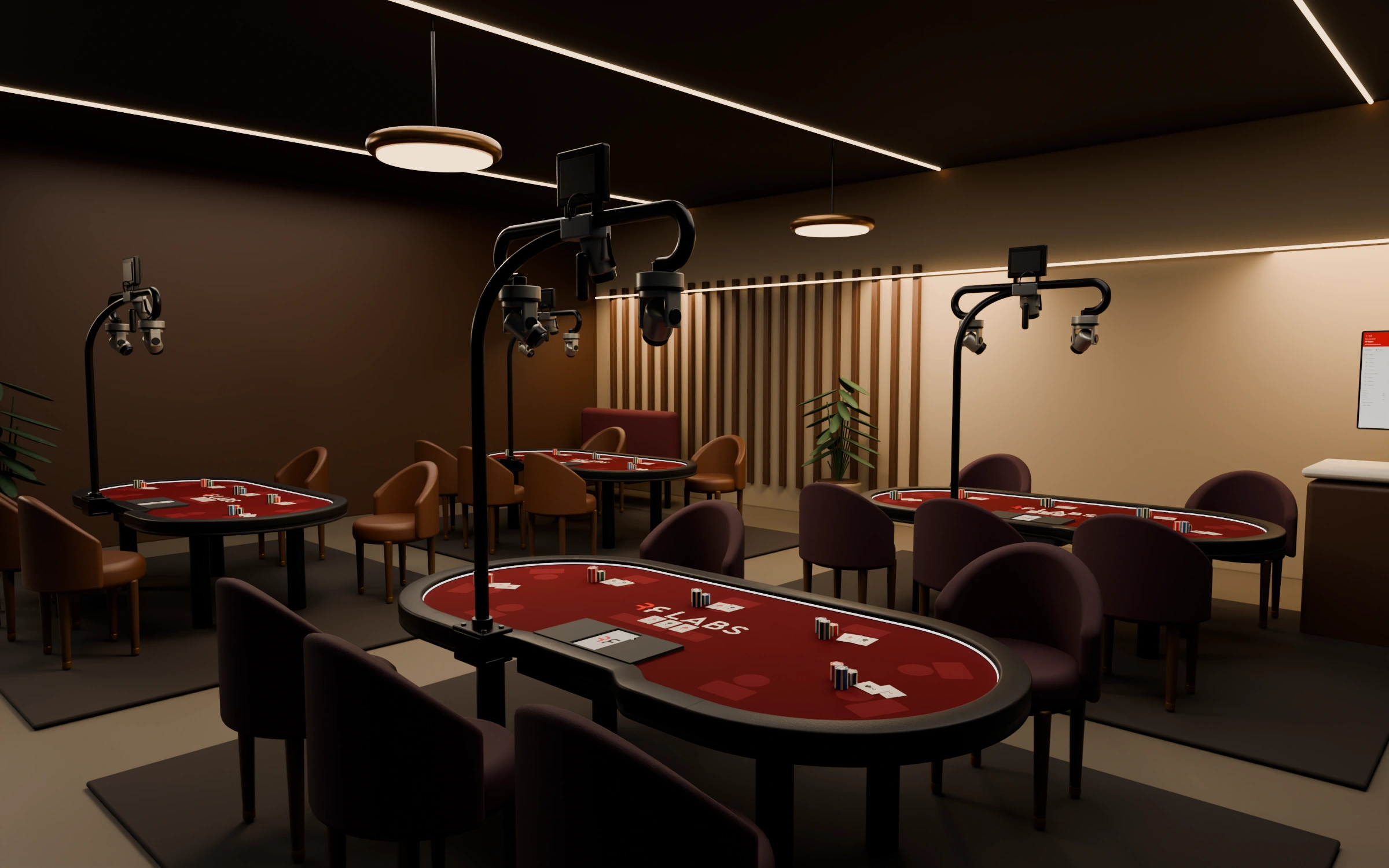
Cameras & recording
Our tested Axis camera and Camera Station combination connects local security recording with RF’s table feeds.
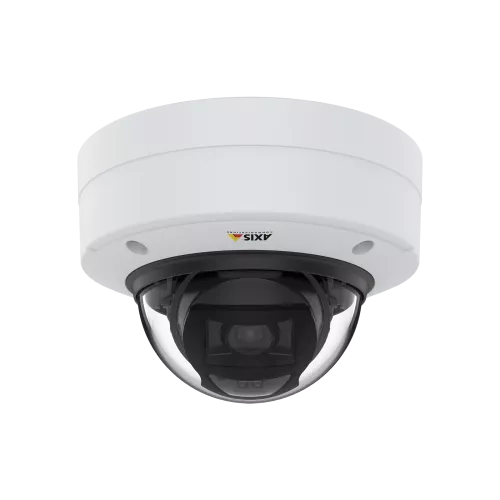
Tested table camera
AXIS P3245-LVE
1 per table
Tested with RFDiscontinued · tested reference
The Axis network camera used in our RF test setup, paired with Camera Station. Give each table a fixed, calibrated view of its felt.
- 1920 × 1080
- PoE
- H.264 / RTSP
This model is discontinued. Contact RF before purchasing cameras so we can confirm the exact tested hardware, lens and mounting arrangement for your installation.
View tested model & support for AXIS P3245-LVE (opens in a new tab)Tested security recording software
AXIS Camera Station Pro
Shared / size for your venue
Tested with RFThe local video management system tested with our Axis camera setup. Security recording and RF hand recordings use their own storage workflows.
- Local video management
- Security recording
- RF camera integration
Have RF and your installer size the host, camera licenses and usable storage for your room. Confirm software version and configuration with RF.
View manufacturer details for AXIS Camera Station Pro (opens in a new tab)Registration desk essentials
Our tested receipt, scanning and membership-card setup for staffed RF registration desks.
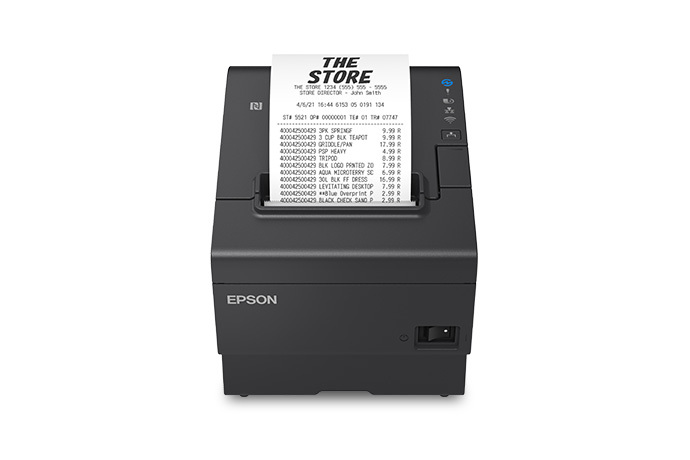
Receipt & tournament ticket printer
Epson TM-T88VII
1 per staffed desk
Tested with RFOur tested thermal printer for entry tickets and supported RF receipt workflows.
- 80 mm thermal paper
- USB / Ethernet
- Automatic cutter
Include the power supply, USB cable and paper. Use the 80 × 200 mm roll-paper profile, 100% scale and no browser headers or footers.
View manufacturer details for Epson TM-T88VII (opens in a new tab)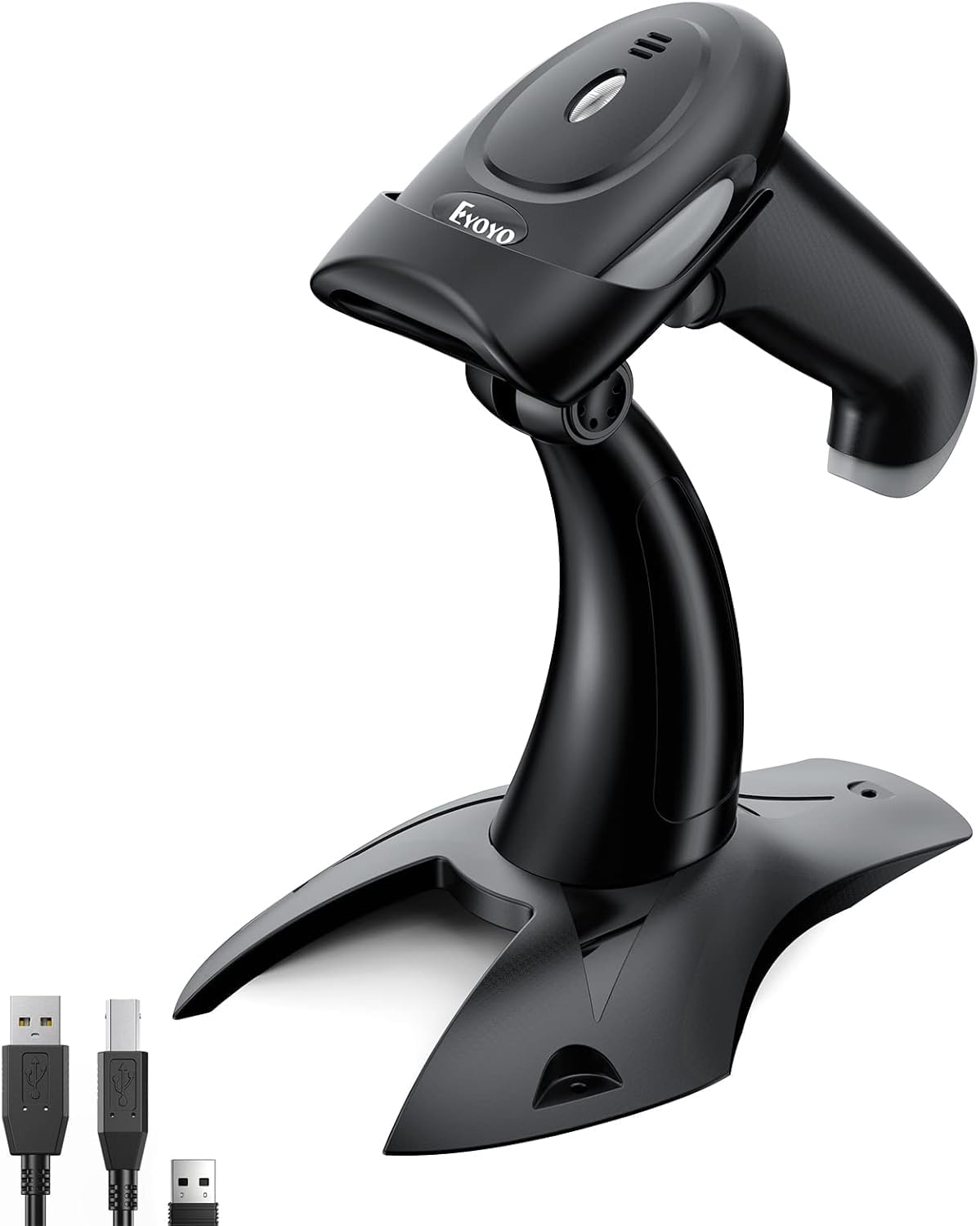
QR & barcode scanner
Eyoyo 2D scanner & stand
1 per desk or kiosk
Tested with RFThe handheld scanner and adjustable stand from our RF registration-desk purchase. Scan player codes from printed tickets and phone screens.
- 1D + 2D / QR
- USB / wireless
- Adjustable stand
Match the linked handheld kit, including its stand, USB cable and receiver. Use USB HID keyboard mode, a US keyboard layout and an Enter suffix for the desk workflow.
View the purchased scanner kit for Eyoyo 2D scanner & stand (opens in a new tab)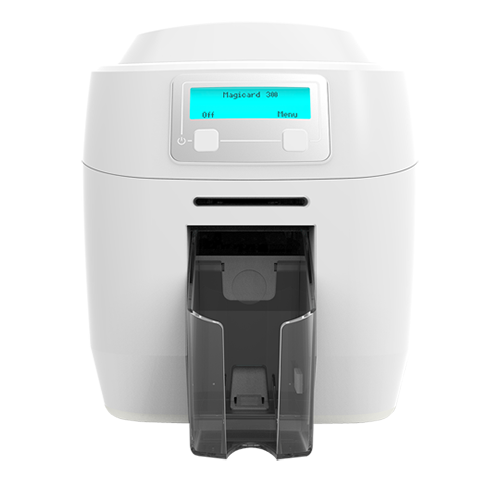
Membership card printer
Magicard 300
Shared / size for your venue
Tested with RFOur tested card-printer family for player membership cards. Use the dual-sided configuration for front-and-back cards.
- Dual-sided configuration
- CR80 PVC cards
- USB connection
Include the correct ribbons, blank cards and cleaning kit. Match the tested duplex configuration and confirm orientation and readable printed codes.
View manufacturer details for Magicard 300 (opens in a new tab)TV display player
A dedicated NUC connects each TV to RF’s table status, tournament information and other operator displays.
Recommended NUC for venue TVs
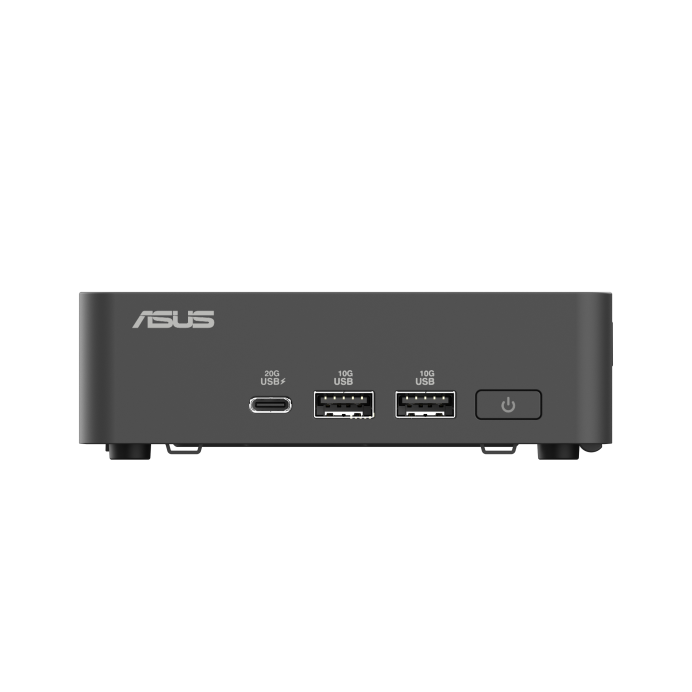
ASUS NUC 15 Pro
1 per independent TV
RF recommendationUse one compact NUC per independently controlled TV. Our recommended configuration is a Core Ultra 5 processor, 16 GB RAM, a 512 GB SSD and Windows 11 Pro.
- Core Ultra 5
- 16 GB RAM / 512 GB SSD
- HDMI · 4K at 60 Hz
- Wired Ethernet
Order a complete configured PC with its power supply, VESA bracket and HDMI cable. Barebone kits need RAM, storage and an OS added. Have RF configure Display, automatic startup and power recovery before rollout.
View manufacturer details for ASUS NUC 15 Pro (opens in a new tab)Stripe point of sale
S710 and T600 are our recommended Stripe readers. Choose S710 for handheld checkout and T600 for a fixed counter, then add the accessories your layout needs.
Handheld or countertop payment reader
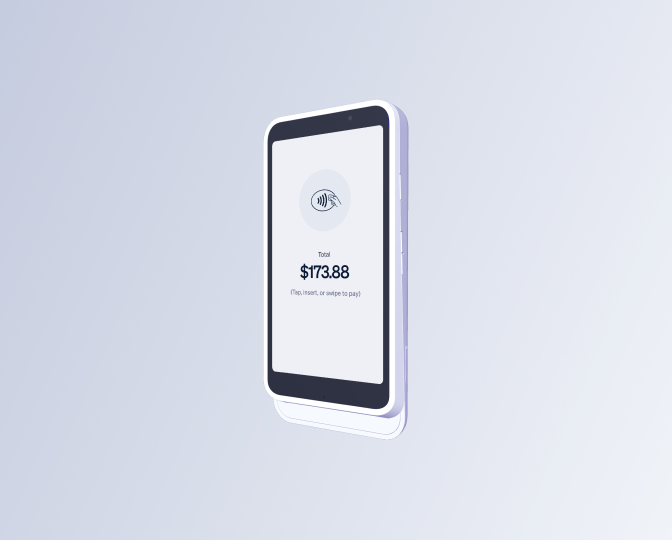
Stripe Reader S710
Choose per handheld payment point
RF recommendationA portable payment reader with a 5.5-inch touchscreen. Accept tap, chip and swipe payments over Wi-Fi, with Ethernet available through the Stripe Reader Hub.
- 5.5-inch touchscreen
- Tap / chip / swipe
- Wi-Fi
- Rechargeable battery
Choose for handheld payment points or a counter that needs a removable reader. Add the S710 Dock for countertop charging, the Reader Hub for Ethernet, and a case for handheld use. Order through Stripe for your RF-connected merchant account.
View manufacturer details for Stripe Reader S710 (opens in a new tab)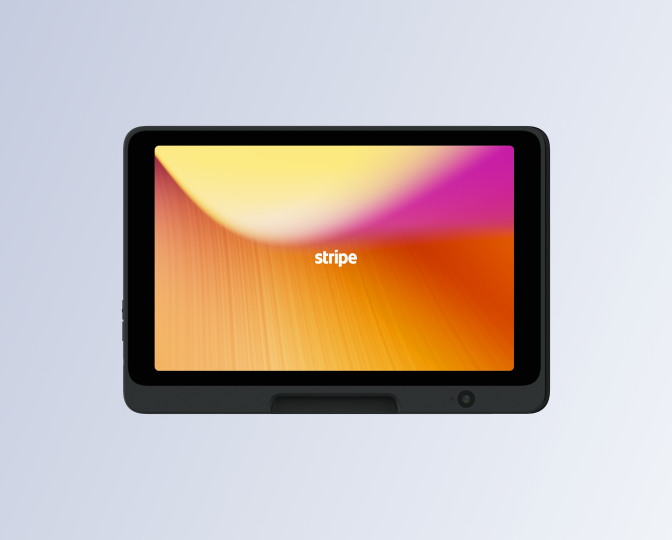
Fixed countertop payment reader
Stripe Reader T600
Choose per fixed payment point
RF recommendationAn 8-inch landscape payment reader for a staffed checkout counter. Accept tap, chip and swipe payments with a larger customer-facing display.
- 8-inch landscape display
- Tap / chip / swipe
- Wi-Fi / Ethernet with hub
- USB-C power
Choose for fixed payment points. Include the Stripe Reader Hub if you want wired Ethernet and use the supplied 20 W power adapter. Confirm the counter or pole-mount arrangement with RF. Order through Stripe for your RF-connected merchant account.
View manufacturer details for Stripe Reader T600 (opens in a new tab)Accessories for your chosen reader.
Add only the accessories needed for the payment points in your room.
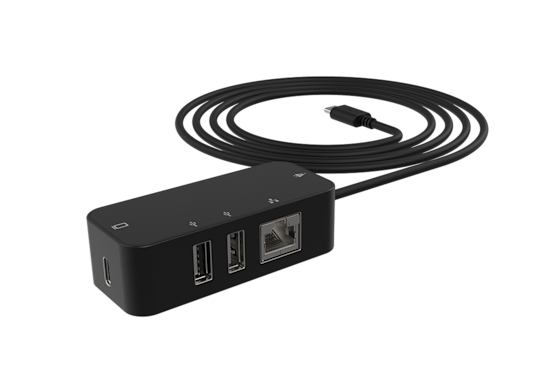
Stripe Reader Hub
Add to S710 or T600 where the reader needs wired Ethernet.
View accessory for Stripe Reader Hub (opens in a new tab)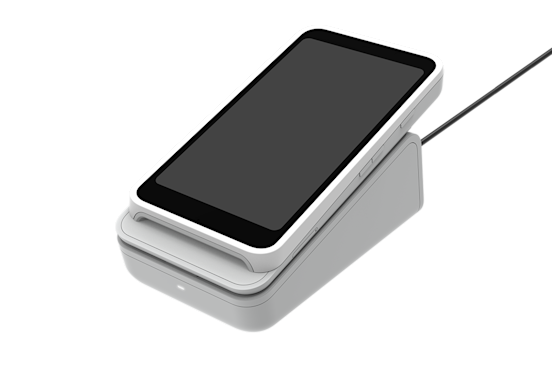
Stripe Reader S710 Dock
Keep an S710 powered and positioned on a staffed counter. Reader sold separately.
View accessory for Stripe Reader S710 Dock (opens in a new tab)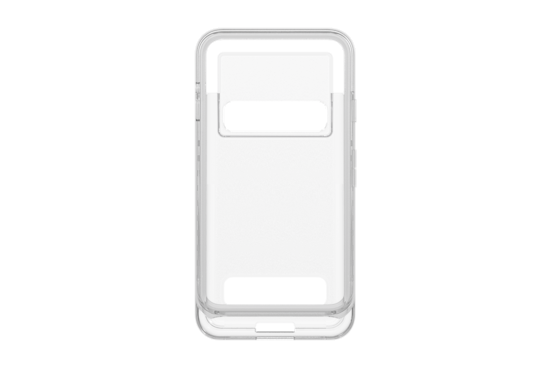
Stripe Reader S710 Case
Add protection for an S710 used around the floor. Reader sold separately.
View accessory for Stripe Reader S710 Case (opens in a new tab)RF supports membership and merchandise checkout through Stripe. Contact RF to complete merchant onboarding and confirm reader availability and setup for your venue.
Start with your room.
Set your table, TV and station counts. Download the equipment checklist, then size your recording storage. Payment reader quantities are selected separately for your checkout points.
12 TV players
2 desk / kiosk stations
2 receipt printers
2 scanners
CSV includes tested products, recommendations and archive assumptions. Select payment readers separately.
Size your camera archive.
Camera count alone doesn’t determine the recorder. Check bandwidth and usable storage, too.
46.7 TB video payload / 58.3 TB with allowance / 144 Mbps ingest while recording
Planning estimate, one video copy in decimal TB. Usable capacity is after RAID. Excludes separately stored RF copies, clips, audio and other data. Actual bitrate must be measured; the selected retention is an example, not a requirement.
How this is calculated
Cameras × Mbps × recording hours per day × retention days × 0.00045 = video payload in TB. Multiply by 1.25 for the planning allowance. Ingest is cameras × Mbps, before overhead or additional RF connections.
Connect it to RF.
Give this section to your installer. RF will confirm the setup for your deployed software and equipment.
Camera feeds, vision & clips
Connect each table camera to a managed PoE switch on a network that both the assigned RF table and security recorder can reach. Give it a stable IP address and a dedicated streaming account.
- Enable a continuous H.264 RTSP stream. Start with a fixed resolution and 25/30 fps where supported, a 1–2 second keyframe interval, and approximately 8–16 Mbps. Adjust after checking the actual image quality.
- In RF, open Command Center → Hands → your table → Table controls → Recording. Configure the camera source as RTSP, enable it, and assign the intended vision camera the
widerole. - Calibrate the fixed view with real cards, chips and venue lighting. Check all seats, moving hands and chip stacks, plus recovery after a camera or network restart.
- Record a hand, render a clip, play it back and verify its storage delivery. Turn on Upload raw footage with the master if you also want RF to archive the source recordings remotely.
Axis, after creating an RF stream profile:rtsp://CAMERA_IP:554/axis-media/media.amp?streamprofile=RF
RF needs a readable view of the table, not just general room coverage. Security NVR recording and RF clip storage are separate. Keep the view fixed, test simultaneous NVR and RF connections, and retain RFID inputs for concealed cards.
TV pairing & content control
- Use the recommended ASUS NUC 15 Pro configuration with RF OS Display. Connect each player to its TV using HDMI and wired Ethernet. Select the RF HDMI input on the TV.
- Install RF OS Display and connect to your venue’s RF OS server. Register and name every screen by its physical location. For browser pairing, enter its six-digit connection code in the venue’s Displays controls.
- Choose each screen’s table status, tournament clock, seating, floor plan or other available RF view in operator-web.
- Configure automatic startup and AC power recovery, disable sleep and screensavers, and check that the screen retains its identity after reboot.
One player per TV enables independent content. An HDMI splitter mirrors the same output. Switching between RF and sports/cable also needs TV input control or a separate AV control system.
Receipt printing, card printing & scanning
Install the printer’s Windows driver and configure the Epson roll-paper profile to 80 × 200 mm, 100% scale, no browser headers or footers, and the appropriate cutter setting. The documented Epson profile has a 72 mm printable width.
Use USB HID keyboard mode on scanners, enable QR decoding, select a US keyboard layout and add an Enter suffix. Test a phone-screen QR code and an actual printed ticket in RF’s scanning field.
RF OS Client’s current silent-print workflow follows the OS default printer. Keep the Epson as the desk default; use deliberate printer selection or a separate issuance station/profile for Magicard jobs. Test duplex orientation and printed-code readability.
Keep thermal paper, spare cables, scanner stands, the correct Magicard ribbons, CR80 blank cards and cleaning kits in stock. Add a webcam and even lighting for player photos.
Stripe reader ordering & pairing
- Complete merchant onboarding with RF. Confirm the account, supported checkout workflow and country before ordering hardware.
- Choose an S710 for each handheld payment point or a T600 for each fixed counter. Order through Stripe for your RF-connected merchant account, adding the hub, dock or case needed for that reader.
- Connect the reader to Wi-Fi or use a Stripe Reader Hub for wired Ethernet. Keep the reader powered for software updates.
- Have RF register and pair the reader to the correct venue checkout, then verify the checkout workflow before opening.
Network essentials.
Your networking vendor should plan the room as a connected system, including storage and recovery.
- Wired connections
- Cat6 and power at every table, TV, desk and camera. Label both ends and allow ports for growth.
- Managed switching
- VLAN-capable switches, Gigabit endpoint links and a 10 Gb backbone for larger rooms. Size PoE from each device’s maximum load plus margin.
- Camera access
- Allow the assigned RF tables to reach camera RTSP services, normally TCP 554. Isolated NVR camera ports may need a different connection plan.
- Separate traffic
- Separate guest Wi-Fi, payment/business systems, RF tables, CCTV, displays and management. Give staff tablets surveyed Wi-Fi coverage.
- Storage & power
- Specify usable capacity after RAID, recording bitrate and retention. Provide a locked, ventilated rack, UPS backup and synchronized time.
Product imagery: Axis, Epson, Eyoyo, Magicard, ASUS and Stripe.
Bring your floor plan.
We’ll help turn this starting list into a setup for your room and opening date.
Plan with RFShare your table count, TV locations and registration workflow. We’ll confirm equipment quantities and the configuration for your installation.